

More information on the filter and it's parameters can be found here.
The acrhive contains the following folders:
 The above sample is a good demo of the Bilateral filter concept: it blurs only similar areas (domains) while bypassing contrast transitions (edges).
Assume we do the pixel-by-pixel processing in Gray scale image (one pixel = one byte). For each pixel being calculated we operate with numeric values in range [0;255]. The value for the resulting pixel is calculated as a weighted mean of surrounding pixels were weight is determined by pixel color and spatial functions.
The formula for calculating pixel value is as follows:
where Px,y - pixel value being calculated, Pi,k - one of the pixels in the surrounding area (kernel), n - surrounding area size (kernel size), Fcolor - function that determines color closeness, Fdistance - determines spatial closeness.
Fcolor, Fdistance are the functions which define the results produced by the filter. They are exponent functions and details on the internals can be found in the article describing bilateral filter. Since it's an iterative algorithm a limited number of pixels takes part in calculation which is determined by the surrounding square (kernel).
The important thing is that there're 3 parameters which influence the functions & algorithm and thus the results. The parameters are positive integral numbers:
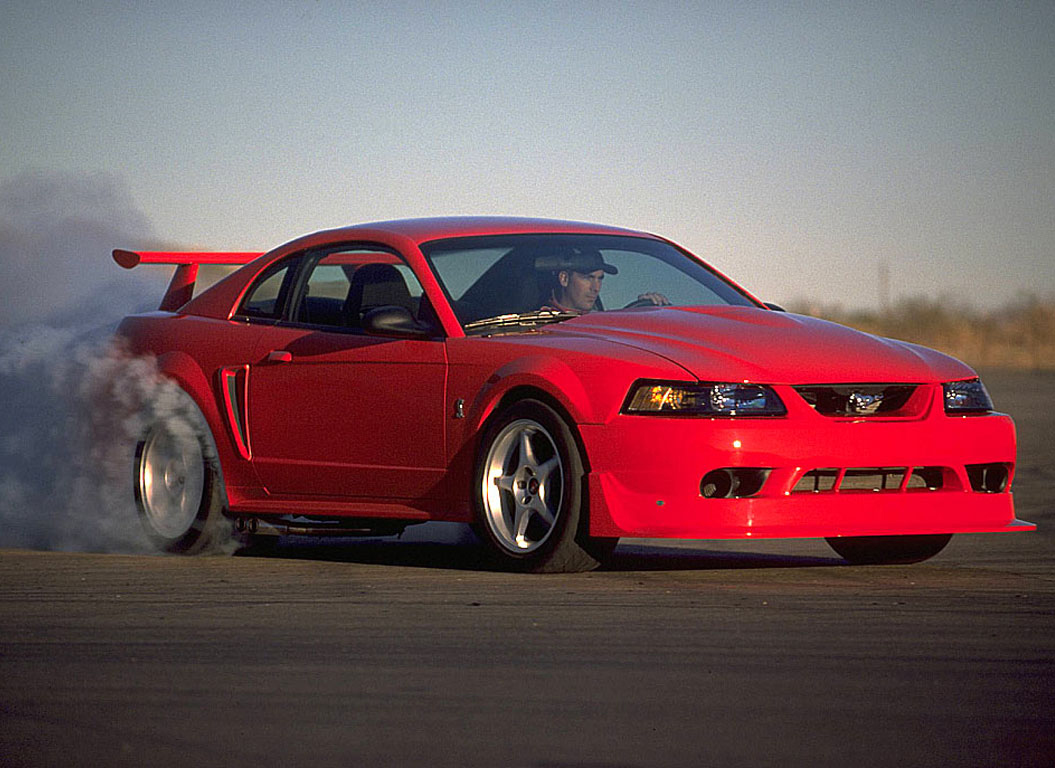
Bellow you may see another example of bilateral filter being applied to RGB image. The approach is exactly the same as described above but in this case each channel values for a specific value is calculated separately (instead of one value for gray scale image 3 values are calculated for a pixel):
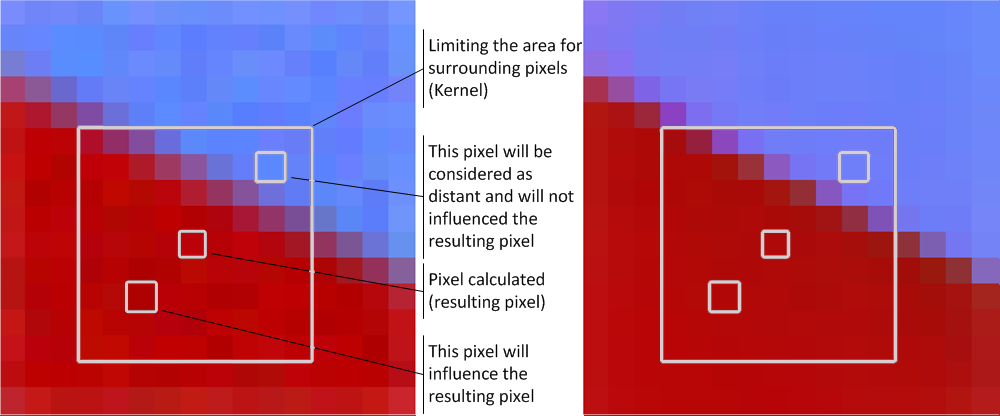
Filter parameters influencing the output
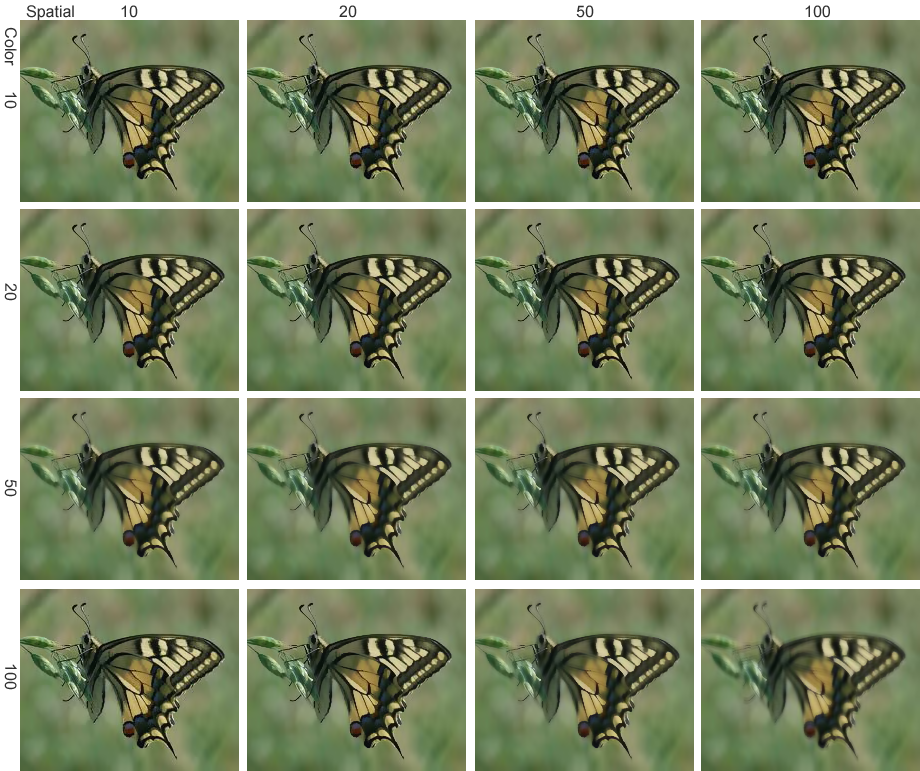
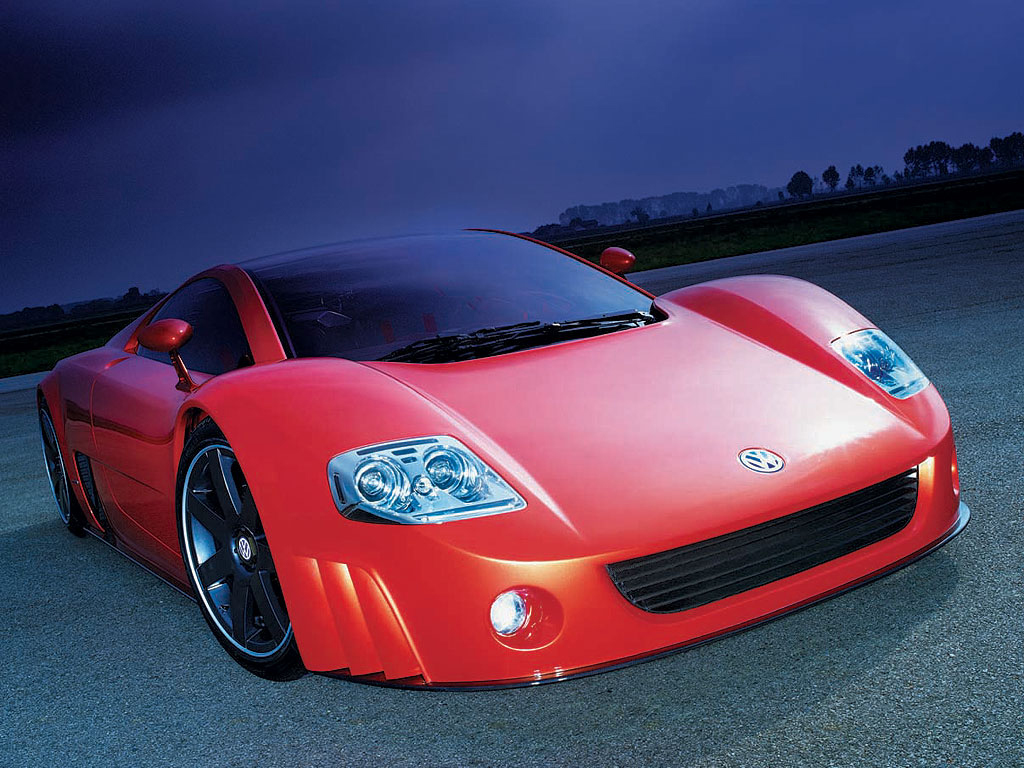
Bellow you'll find an original image and a grid depicting how the image is changed by the filter depending on specific parameter values, kernel size is 7 and is constant:











function ChangesTracker () {
    this.confirmMessage =
        "There're unsaved changes on the page. Do you wish to save them before navigating away?";
    this.selectors = ["html body table tbody tr td.Toolbar a"];
    this.ignoreSelectors = ["a#save", "a#remove"];
    this.changedFlag = false;
    this.enabled = false;
    this.eventPublisher = {};
}

ChangesTracker.prototype.setChanged = function (state) {
    this.changedFlag = state;
}

ChangesTracker.prototype.raiseOnLeave = function () {
    if (this.enabled && this.changedFlag == true && this.showConfirmation()) {
        $(this.eventPublisher).trigger("onLeaveWithChanges");
        return true;
    }
    return false;
}

ChangesTracker.prototype.bindOnLeaveEvent = function (handler) {
    $(this.eventPublisher).bind("onLeaveWithChanges", handler);
}

ChangesTracker.prototype.showConfirmation = function () {
    return confirm(this.confirmMessage);
}

ChangesTracker.prototype.enable = function (selectors) {
    var self = this;
    if (selectors) this.selectors = selectors;
    var query = $();

    for (var i in this.selectors) {
        query = query.add(this.selectors[i]);
    }

    for (var i in this.ignoreSelectors) {
        query = query.not(this.ignoreSelectors[i]);
    }

    query.click(function () {
         self.raiseOnLeave();
     });

    this.enabled = true;
}

ChangesTracker.prototype.disable = function () {
    this.enabled = false;
}

var changesTracker = new ChangesTracker();

$(document).ready(function () {
    changesTracker.enable();
});
<script type="text/javascript" src="JavaScripts/ChangesTracker.js"></script>
<script type="text/javascript" language="javascript">
    changesTracker.bindOnLeaveEvent(function () {
        $('form#fields').submit();
    });

    $(document).ready(function () {
        $("#table.fields input").change(function () { changesTracker.setChanged(true) });
    });
</script>

When I played a bit with the widget I recevied custom solution which is based on jQuery UI Autocomplete and Combobox sample:
HTML output for the widget looks the following way:

As you can see the extended <select> is hidden, and input with name {select.name}Custom is rendered next to it.
Using the control
In order to use the widget on your page your need to:All the above files can be downloaded from here. Includes in ASP.NET MVC views may look as goes bellow:
<script type="text/javascript" src="<%=Url.Content("~/JavaScripts/jquery-1.7.1_min.js")%>"></script>
<script type="text/javascript" src="<%=Url.Content("~/JavaScripts/jquery-ui-1.8.16.custom.min.js"/>
<link rel="stylesheet" type="text/css" href="<%=Url.Content("~/Style/ComboBox.css")%>"/>
<script type="text/javascript" src="<%=Url.Content("~/JavaScripts/ComboboxWidget.js")%>"></script>
public class SampleViewModel
{
    public string SelectedId { get; set; }
    public string SelectedIdCustom { get; set; }
    public Dictionary SelectOptions { get; set; }

    public bool IsCustomValue
    {
        get
        {
            return SelectedIdCustom != null &&
                !SelectOptions.Values.Contains(SelectedIdCustom);
        }
    }
}
<%= Html.DropDownListFor(m => m.SelectedId, new SelectList(Model.SelectOption, "Key", "Value"))%>

$(document).ready(function () {
    $("#SelectedId").combobox();
});
public ViewResult Save(SampleViewModel viewModel)
{
    GetSelectOptions(viewModel); // Fetch DB values and fill in SelectOptions dictionary

    if (viewModel.IsCustomValue) // Is user typed in custom text
    {
        SaveNewValue(viewModel.SelectedIdCustom); // Do some actions with the value
    }
    else // a user has selected one of existing options
    {
        SaveExistingValue(viewModel.SelectedIdCustom); // Do some actions
    }

    return View(viewModel);
}
Using Thread.Sleep() or any similar execution delay is not a good technique (slow, hard to choose optimal value for both slow and fast environments etc.). Bellow you may find a C# extension method for Selenium IWebDriver interface which utilizes polling mechanism in order trace element style changes and decide whether animation is over:
public static void WaitForCssStyleChange(this IWebDriver webDriver, string xPath,
                                                 bool failOnNoCHange = true)
{
   var i = 0; // poll counter
   var cumulative = 0; // the number of CSS/style checks that didn't find any changes
   var element = webDriver.FindElementEx(By.XPath(xPath));
   var originalCss = element == null ? String.Empty : element.GetAttribute("class");
   var originalStyle = element == null ? String.Empty : element.GetAttribute("style");
   var prevCss = originalCss;
   var prevStyle = originalStyle;

   while (i < SeleniumConfiguration.PollingThreshold) // Do polls until threshold is exceeded
   {
       element = webDriver.FindElementEx(By.XPath(xPath));
       if (element != null)
       {
           var css = element.GetAttribute("class");
           var style = element.GetAttribute("style");

           // if the previous CSS/Style is same - increase the counter
           if ((css == prevCss || style == prevStyle)) cumulative++;
           if (cumulative > 2) return; // most like animation is over

           prevCss = css;
           prevStyle = style;
       }

       Thread.Sleep(SeleniumConfiguration.PollingPeriod * 100);
       i++;
   }

   if (element == null) throw new TimeoutException("Element not found "); // fail if no element
   if (failOnNoCHange && (originalCss == prevCss) && (originalStyle == prevCss))
       throw new TimeoutException("Element was not changed"); //require element style/CSS change
}
Worked for me in IE8, 9 and FF.
